Please note that BOLT will be unavailable to all end users on Sunday, May 12, 2019 from 2am to 12 noon EST. A maintenance page will appear during this time and no access to the site will be possible during the window. This scheduled time was moved by D2L to accommodate activities during finals week. Please schedule BOLT activities accordingly.
Impact: BOLT will be inaccessible to all end users during the scheduled downtime.
When: 05/12/2019 2AM - 12PM EST
Why: D2L is migrating all Brightspace clients to AWS.
Common Questions:
Will this affect my student work in my courses?No. This migration won't affect student, or any end user, data.
Will this affect instructor's course content?
No. This will not affect course content or other instructor work done in courses.
If you have any questions, contact us at imdc@bloomu.edu.
Thank you,
IMDC Staff

A blog for Bloomsburg University students to get updates on BOLT.
Friday, April 12, 2019

Wednesday, December 5, 2018
Brightspace Pulse Available for BOLT Students
The Brightspace mobile app, Pulse, is now available to students using BOLT.
See it in action in the video below:
You can get the app on Google Play or at the App store. Go to https://www.d2l.com/products/pulse/ and click on the appropriate logo to get Pulse on your device!
Once you get Pulse, you should be able to select your school to set it up. If you are on campus, Bloomsburg/BOLT should be at the top of the list!
If you want detailed information on how to use Pulse, you can find it at https://documentation.brightspace.com/EN/pulse/-/learner/using_pulse.htm
See it in action in the video below:
You can get the app on Google Play or at the App store. Go to https://www.d2l.com/products/pulse/ and click on the appropriate logo to get Pulse on your device!
Once you get Pulse, you should be able to select your school to set it up. If you are on campus, Bloomsburg/BOLT should be at the top of the list!
If you want detailed information on how to use Pulse, you can find it at https://documentation.brightspace.com/EN/pulse/-/learner/using_pulse.htm
Wednesday, October 3, 2018
Announcing End of Life of the Binder App, Bringing Life to Pulse App in Winter
D2L has announced an end of life date for the Binder app of May 31, 2019. Those who need to access course materials offline will be able to use the Brightspace Pulse app for iOS and Android starting this Winter session at Bloomsburg.
On May 31, 2019 Binder will no longer be supported by D2L, will no longer work with Brightspace (BOLT), and will be removed from the Apple and Google app stores.
Students can check upcoming readings, assignments, and tests quickly to make better decisions about how to handle their workload. Notifications keep students up to date with course news and let them know when grades are available. Pulse also allows students to read and reply to class discussions they're subscribed to right within the app.
Pulse will be available to Bloomsburg University students by this Winter session. We will announce its arrival at that time.
Phase 1 of End of Life for Binder: November 1, 2018
D2L will no longer keep a copy of a user’s Binder content and annotations in the cloud (it will remain on their device only). The web-based Binder client will no longer be available. Binder will only be able to annotate PDF documents. And the “Send to Binder” button in the Content tool will be removed.What should Binder users do prior to November 1?
- Be sure to update the Binder app with the latest release prior to November 1 to avoid any disruption. Many phones and tablets do this automatically.
- If you use the Binder website, be sure to log into the free Binder app for iOS or Android prior to November 1 to sync all changes locally to your device.
How will users get course materials into Binder?
You can still add your Brightspace course materials to Binder from within the Binder app.Can users still annotate in Binder?
You will be able to annotate PDF documents from Brightspace, as well as PDF documents from other sources (Google Drive, Dropbox), while still being able to view and annotate any existing documents, even offline.Phase 2 of End of Life for Binder: May 31, 2019
On May 31, 2019 Binder will no longer be supported by D2L, will no longer work with Brightspace (BOLT), and will be removed from the Apple and Google app stores.
Will users still be able to use Binder after May 31?
Binder will remain installed on existing devices, but users will not be able to reinstall the application from the app stores, and there will be no further updates. Furthermore, it should be expected that over time parts of Binder will stop working as the Android and iOS operating systems that Binder depend on are updated and changed.Does D2L have an alternative for accessing course materials offline?
Yes, the Brightspace Pulse app is freely available on iOS and Android platforms and allows students to view and access course materials offline.What is Brightspace Pulse?
Brightspace Pulse is a mobile app that helps students keep track of important updates. It brings news, deadlines, and grades together in one place so they can spend less time organizing and more time learning.Students can check upcoming readings, assignments, and tests quickly to make better decisions about how to handle their workload. Notifications keep students up to date with course news and let them know when grades are available. Pulse also allows students to read and reply to class discussions they're subscribed to right within the app.
Pulse will be available to Bloomsburg University students by this Winter session. We will announce its arrival at that time.
Coming Soon: Auto-save in Quizzes
You know how you can take an entire quiz in BOLT but if your connection drops you might lose your answers if you don't save them periodically?
That's going to be a thing of the past soon.
BOLT will soon introduce an auto-save feature in quizzes. Answers will save automatically while you're taking a quiz.
This feature is not yet available but is in on its way. Keep saving your answers for now! We will post once the feature is available.
That's going to be a thing of the past soon.
BOLT will soon introduce an auto-save feature in quizzes. Answers will save automatically while you're taking a quiz.
This feature is not yet available but is in on its way. Keep saving your answers for now! We will post once the feature is available.
Quizzing with LockDown Browser


BOLT TIP: Find your feedback in BOLT
Thursday, February 1, 2018
Fresh BOLT How-To for Spring!
We promised you a new version of our BOLT How-To pages and they are now available!
You can access the new IMDC Infobase at https://bloomuimdc.freshdesk.com. Or, if you're in BOLT, click Help and then click BOLT How-To.
You can search for topics, look at related articles, download our step by step tutorials, and watch our YouTube videos directly on the topic pages.
We made a video to show you how it works:
You can access the new IMDC Infobase at https://bloomuimdc.freshdesk.com. Or, if you're in BOLT, click Help and then click BOLT How-To.
You can search for topics, look at related articles, download our step by step tutorials, and watch our YouTube videos directly on the topic pages.
We made a video to show you how it works:
Get Help in BOLT!
Back for a new semester? Starting out at Bloomsburg?
In either case, you may need this information about how you can get help with BOLT!
In either case, you may need this information about how you can get help with BOLT!
- Log in to BOLT at https://bolt.bloomu.edu with your HuskyID.
- If you need help in BOLT, check out the Need Help? widget in BOLT.
- You can get BOLT Support any day, any time at 1-866-921-0473!
- Search for helpful BOLT topics at our new IMDC Infobase at https://bloomuimdc.freshdesk.com
- Subscribe to our YouTube channel to see any new videos we post. Go to https://www.youtube.com/channel/UCV32JrmLma4pJ4F_SE_MJrg
- Follow our BOLT Students blog at http://bloomuboltstudents.blogspot.com
BOLT TIP: No confirmation needed when starting or submitting quizzes!
Easier Quiz Start and Quiz Submit in BOLT
You no longer need to confirm starting or submitting your quizzes in BOLT!
Clicking Start Quiz begins your quiz.
Clicking Submit Quiz submits your quiz.
This is a change as you used to have to confirm starting or submitting your quiz on a secondary screen.
Thursday, January 11, 2018
Network Outage Saturday, January 13 and BOLT
On Saturday, January 13, from 9am to 5pm, there is a mandatory network outage on campus for network upgrades. This will affect ALL of campus during that window.
It is possible that BOLT might not be available for a few minutes at some point during the outage.
Please plan accordingly.
It is possible that BOLT might not be available for a few minutes at some point during the outage.
Please plan accordingly.
Wednesday, December 20, 2017
Tips and Tricks to be Successful in an Online Course
We made a video. You can watch it here.
Thursday, November 30, 2017
Ready for Semester End?
Here are some tips for the end of the semester in BOLT:
Check your progress!
Use Assessments > Class Progress to check where you stand in your classes.
Schedule any proctored exams.
Are you supposed to take a proctored exam? Make sure to schedule within the specified timeframe.
Download stuff!
Use Binder to download your course content. You can download Binder for iOS or Android devices. You can also use the Download feature to download your submissions and feedback from the Assignments tool.
Export ePortfolio!
Are you graduating? Take your ePortfolio with you. See the myDesire2Learn Access widget in BOLT for details on how to do this.
Grades Exemption Expansion
Did your instructor exempt you from graded activities in BOLT?
If an instructor exempted you (in BOLT) from a graded activity they linked in Content, you should now see the exemption in Content.

This is an expansion of the Grades Exemptions feature in BOLT. (Please note: If your instructor exempted you from activities, assignments, or grades outside of BOLT, you won't see that in BOLT unless they add the exemption to BOLT for you!)
Read on for other places you should see exemptions when instructors apply grade exemptions in BOLT.
If an instructor exempted you (in BOLT) from a graded activity they linked in Content, you should now see the exemption in Content.

This is an expansion of the Grades Exemptions feature in BOLT. (Please note: If your instructor exempted you from activities, assignments, or grades outside of BOLT, you won't see that in BOLT unless they add the exemption to BOLT for you!)
Read on for other places you should see exemptions when instructors apply grade exemptions in BOLT.
Thursday, August 10, 2017
Daylight Dawns August 17th
We are flipping the switch to Daylight on August 17th.
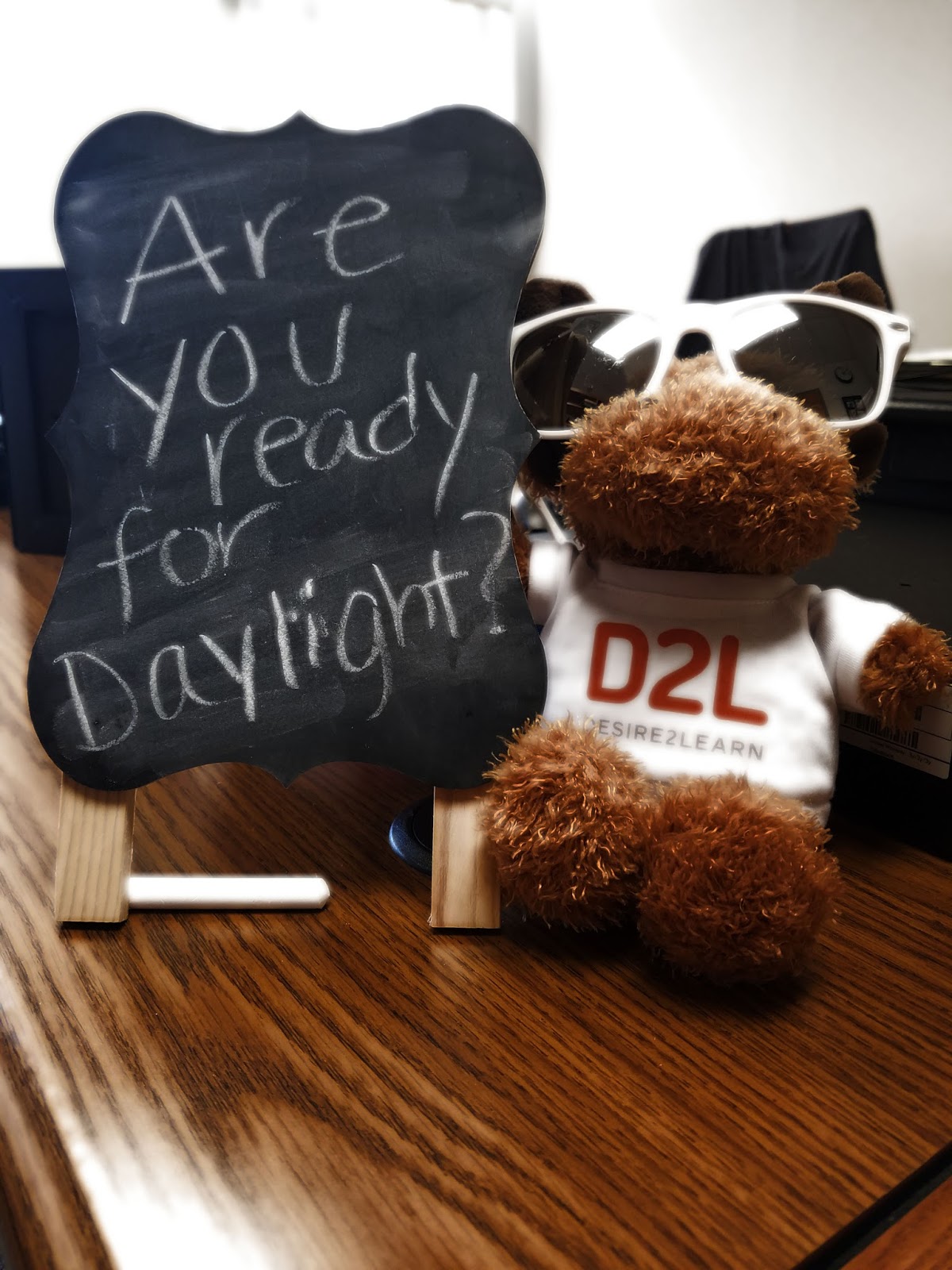
The Daylight Experience is coming to BOLT to bring a new, modern, responsive design to BOLT. BOLT will display better on mobile devices and will have other user experience improvements, including a new My Courses widget.
 |
| Daylight is coming to BOLT on August 17 |
If you want more information on Daylight, check out our student videos on our YouTube channel. We have a special Daylight playlist just for students to show you how to use the new user interface: https://youtu.be/RiUaeT04IUM?list=PLXjuCKxYK182fiunZmv-n2UyDFDIja7MG
We will also be updating our Student Support information at https://intranet.bloomu.edu/imdc-bolt-student. Help documentation will be updated to match the new look and feel in BOLT.
Gear Up for 2017 Fall
Here are some answers to common questions to help you get ready for the upcoming semester!
|
Can’t see your courses? Students aren’t added to Fall courses until August 17th. After that, if you add a course in MyHusky, it takes 24-48 hours for you to be added to the course in BOLT. Students won’t see courses until instructors make them active in BOLT, and some instructors won’t use BOLT. If you have questions about when your instructor is giving you access to BOLT, please contact your instructor. |
|
Can’t login to BOLT? BOLT uses your HuskyID credentials. If you can’t login to BOLT, try logging into your email. If you can’t login to your email, you may need a password reset. If you can, are you a transfer or Grad student? They don’t have access until August 17th! |
|
Using Clickers? If you are in a course using clickers, register your clicker via the Clicker Registration link in BOLT (under University Resources). You MUST register via the link. |
|
Need help in BOLT? We have 24/7 technical support from our vendor that can be accessed via the Support Portal widget in BOLT. Click through the widget to access live chat support, email support, and a knowledge base. Telephone support is available at 1-866-921-0473. We also have a student blog at http://bloomuboltstudents.blogspot.com. We maintain student support information at https://intranet.bloomu.edu/imdc-bolt-student, and have a YouTube channel with video tutorials at https://www.youtube.com/channel/UCV32JrmLma4pJ4F_SE_MJrg. |
|
Using Proctoring? If your instructor is using Respondus LockDown Browser, download it via our link: http://www.respondus.com/lockdown/download.php?id=666246493 If your instructor is using ProctorU, check out our student guide: https://tinyurl.com/y8t4u3ky |
Reminder: Incoming Freshmen must complete the Orientation Seminar course in BOLT
If you are a new incoming freshman at Bloomsburg University, you need to complete the Orientation course in BOLT. Completion of the course results in a Certificate. You must receive a certificate to complete the course. If you do not, a hold will be placed on your account.
Transfer students do NOT have to complete the course in BOLT and will not gain access to BOLT until August 17th. (New Graduate students also gain access on August 17th.)
If you need specific details or have any concerns, contact orientation@bloomu.edu for details.
Transfer students do NOT have to complete the course in BOLT and will not gain access to BOLT until August 17th. (New Graduate students also gain access on August 17th.)
If you need specific details or have any concerns, contact orientation@bloomu.edu for details.
Thursday, July 20, 2017
What's Next in BOLT: Daylight, coming August 17th to BOLT
BOLT will have a new look and feel next month. The Daylight
Experience is coming to BOLT to bring a new, modern, responsive design to BOLT.
Have you seen Daylight?
Prepare for Online Learning in 2017 Fall
Here are some tips to help you prepare for the upcoming Fall semester.
Check your schedule.
Make sure your schedule looks like you thought it would in MyHusky. Have concerns? Contact your advisor or the Registrar.
Check your email.
Instructors may email you prior to the semester with information.
Get technology requirements for your classes.
Read your instructor’s syllabus carefully and find out what technology is required! For example, do you need a webcam for the course? Will you be using Respondus LockDown Browser? Is your instructor using ProctorU? Do you need a clicker?
Update software.
Make sure you have all your software updates! For instance, if your instructor is using Respondus LockDown Browser, make sure to download it or update to the latest version. Always make sure your web browser and plug-ins are up-to-date!
Learn about BOLT.
Check out our Student Support page and visit our YouTube channel. We also have 24/7 support from our vendor. Click through the Support Portal widget in BOLT, or call 1-866-921-0473 any day, any time.
Register your Clicker
If your instructor is using clickers, register your device via the link in BOLT! If you do not have one, you MUST create a Turning Account by clicking through the Clicker Registration link in BOLT. You cannot make the account outside of BOLT- it must be created through BOLT to work properly with your instructor’s software- and score your clicker responses for grades.
Check your schedule.
Make sure your schedule looks like you thought it would in MyHusky. Have concerns? Contact your advisor or the Registrar.
Check your email.
Instructors may email you prior to the semester with information.
Get technology requirements for your classes.
Read your instructor’s syllabus carefully and find out what technology is required! For example, do you need a webcam for the course? Will you be using Respondus LockDown Browser? Is your instructor using ProctorU? Do you need a clicker?
Update software.
Make sure you have all your software updates! For instance, if your instructor is using Respondus LockDown Browser, make sure to download it or update to the latest version. Always make sure your web browser and plug-ins are up-to-date!
Learn about BOLT.
Check out our Student Support page and visit our YouTube channel. We also have 24/7 support from our vendor. Click through the Support Portal widget in BOLT, or call 1-866-921-0473 any day, any time.
Register your Clicker
If your instructor is using clickers, register your device via the link in BOLT! If you do not have one, you MUST create a Turning Account by clicking through the Clicker Registration link in BOLT. You cannot make the account outside of BOLT- it must be created through BOLT to work properly with your instructor’s software- and score your clicker responses for grades.
New Student Orientation
Are you an incoming freshman? Incoming freshmen must complete the Orientation Seminar course in BOLT. Completion of the course results in a Certificate. You must receive a certificate to complete the course. If you do not, a hold will be placed on your account.
Transfer students do NOT have to complete the course in BOLT and will not gain access to BOLT until August 17th.
If you need specific details or have any concerns, contact orientation@bloomu.edu for details.
Transfer students do NOT have to complete the course in BOLT and will not gain access to BOLT until August 17th.
If you need specific details or have any concerns, contact orientation@bloomu.edu for details.
Friday, June 16, 2017
Welcome, Class of 2021
Are you a new Husky? Welcome to Bloomsburg University and BOLT!
Here is a handy checklist to get oriented with BOLT:
- Bookmark the BOLT How-To
Get step by step tips on BOLT at https://www.bloomu.edu/imdc-bolt-student - Bookmark the BOLT Support Portal
Access chat, email, phone, and DIY support at https://d2lprod.service-now.com/bloomu - Subscribe to the IMDC'sYouTube channel
Access video tutorials at https://www.youtube.com/channel/UCV32JrmLma4pJ4F_SE_MJrg - Login to BOLT
Go to https://bolt.bloomu.edu – use your HuskyID to login. This is the same login as your network and Huskies email account login. - Take the Orientation Seminar course in BOLT
You must take the Orientation Seminar course in BOLT. But don't worry, it's awesome! You'll earn badges and a certificate for completing the course!
Click 2017SummerORG-1-17-01 in your My Courses widget or in the Select a course menu at the top of the page in BOLT. (When the course is available for you to take, it will show up for you to click on it.)
Need help in BOLT? Call 1-866-921-0473 or access our Support Portal widget in BOLT 24/7/365!
Subscribe to:
Posts (Atom)